
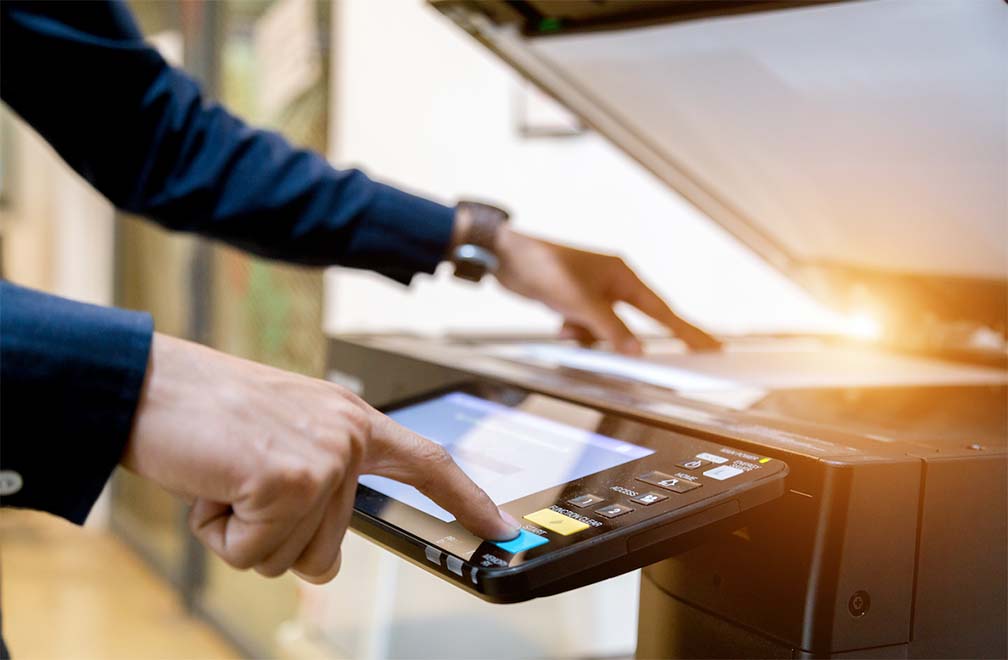
Revolutionizing Document Management with Scan to SharePoint
Scan-to-SharePoint automation captures documents, extracts text via OCR, and routes files to SharePoint libraries without manual intervention—saving 8+ hours per user per week. This direct integration eliminates manual file naming, folder sorting, and re-keying of metadata, allowing teams to redirect hours previously lost to paperwork toward higher-value work.
For organizations still relying on manual scanning workflows, the shift to automated capture removes bottlenecks at the point of intake. Documents are captured from multi-function printers or desktop scanners, processed through OCR engines that recognize text and key data fields, and then automatically routed to the correct SharePoint site, library, or folder based on predefined rules—no human sorting required.
How Scan-to-SharePoint Automation Works
The automation pipeline moves a document from physical scan to indexed SharePoint file in four steps: capture, OCR extraction, metadata tagging, and automated routing—typically completing in seconds rather than the minutes or hours manual filing requires. This consistency reduces filing errors and ensures documents are searchable and compliant from the moment they enter the system.
SharePoint admins configure capture profiles once, and the system applies them consistently across every scanned document, ensuring uniform metadata tagging, version control, and audit-ready storage without ongoing manual oversight.
Frequently Asked Questions
What file types does AI File Pro support for scan-to-SharePoint capture?
AI File Pro processes PDFs, TIFFs, JPEGs, and Word documents scanned from MFPs or desktop scanners. OCR extracts text from both native digital files and scanned images, ensuring searchable, indexed output regardless of the original source format.
How is data secured during the scanning and routing process?
Documents are encrypted in transit and at rest using industry-standard protocols. Role-based access controls restrict who can view or route files, while audit logs track every capture, extraction, and routing action for compliance and security oversight.
What SharePoint versions are compatible with scan-to-SharePoint automation?
The integration supports SharePoint Online (Microsoft 365) and SharePoint Server on-premises deployments. Configuration adapts to existing site structures, libraries, and permission hierarchies without requiring changes to your current SharePoint environment.
Do I need to reconfigure capture profiles for each new document type?
No. Admins configure capture profiles once, defining rules for metadata tagging and routing logic. The system applies these profiles automatically to every matching document going forward, eliminating repeated manual setup.
How long does it take to route a scanned document to SharePoint?
Most documents move from physical scan to indexed SharePoint file in seconds. The automated pipeline—capture, OCR extraction, metadata tagging, and routing—completes far faster than manual filing, which can take minutes or hours per document.
Can scan-to-SharePoint automation integrate with existing MFPs and scanners?
Yes. The solution works with most multi-function printers and desktop scanners already in use, requiring no hardware replacement. Existing devices become capture points feeding directly into automated OCR and routing workflows.
What happens if OCR misreads a document field?
Configurable validation rules flag low-confidence extractions for review before final routing. This exception-handling step maintains accuracy while still automating the majority of documents without manual intervention.
Frequently Asked Questions
How fast does scan-to-SharePoint processing work?
Capture, OCR extraction, metadata tagging, and routing complete in seconds per document. This is dramatically faster than manual filing, which typically takes several minutes to hours depending on document complexity and volume.
What file types does scan-to-SharePoint support?
The system processes PDFs, TIFF, JPEG, PNG, and multi-page scanned documents from MFPs and desktop scanners. OCR extracts text from both machine-printed and handwritten content within these supported formats.
What are the SharePoint integration requirements?
The solution supports SharePoint Online (Microsoft 365) and SharePoint Server on-premises. No changes to existing site structures, libraries, or permission hierarchies are required—configuration adapts to your current environment.
Does scan-to-SharePoint work with existing scanners and MFPs?
Yes. Existing multi-function printers and desktop scanners serve as capture points without hardware replacement. Devices feed directly into automated OCR and routing pipelines, minimizing deployment costs and disruption.
How much time does automation save per employee?
Organizations report saving 8+ hours per user per week by eliminating manual file naming, folder sorting, and metadata re-keying—time redirected toward higher-value tasks instead of repetitive document handling.
What happens when OCR extraction is uncertain?
Configurable validation rules flag low-confidence extractions for manual review before final routing to SharePoint. This exception-handling step preserves accuracy while automating the vast majority of documents.
Do capture profiles need reconfiguration for new document types?
No. Admins define capture profiles once, setting metadata and routing rules. The system automatically applies these profiles to all matching documents going forward, removing the need for repeated manual setup.
Ready to Transform Your Document Management?
See how FabSoft can streamline your document workflows. Try AI File Pro free, or talk to our team about your needs.